Introduction
Most B2B sales reps use LinkedIn Sales Navigator the same way — type a job title, pick a location, scroll through results. The list looks fine. The outreach goes nowhere.
The problem isn't the tool. It's the workflow. Sales Navigator has 50+ advanced search filters, intent-based Spotlight signals, and automated pipeline-refreshing alerts — but the majority of users never get past basic title searches. The result: unfocused lead lists, generic outreach, and response rates that don't justify the subscription cost.
This guide walks through how to use Sales Navigator in the right sequence — from account setup and persona definition through search, list building, alerts, and outreach. Not a feature overview. A step-by-step workflow built around how B2B sales actually works.
Key Takeaways
- Define your ICP and configure Personas before running any search — every other feature depends on getting this right
- Spotlight filters surface high-intent prospects that title searches alone will never find
- Saved searches turn Sales Navigator into a self-refreshing pipeline with weekly prospect alerts
- InMail credits (50/month on Core) are limited — reserve them for high-priority prospects outside your network
- Engage with platform signals before pitching — nurturing happens before the ask, not after
When LinkedIn Sales Navigator Makes Sense for B2B Lead Generation
Sales Navigator earns its cost when outbound prospecting is a regular workflow, not a quarterly experiment. Free LinkedIn search caps results and limits filter precision quickly — frustrating for anyone doing consistent prospecting volume.
The highest ROI scenarios:
- Targeting decision-makers at specific account types — filtering by headcount, industry, or revenue to reach the right people at the right companies
- Running account-based sales motions — monitoring a defined set of target accounts for leadership changes and buying signals
- Tracking intent signals — identifying when prospects change jobs, post actively, or visit your profile
That said, the tool gets misused just as often as it's used well:
- Sending mass connection requests with generic messages (Sales Navigator as a broadcast tool)
- Filtering only by job title without layering seniority or company size
- Building lead lists with no follow-up sequence attached — lists that go cold before anyone reaches out
According to LinkedIn's ROI materials, Sales Navigator delivers 312% ROI over three years, with users making 5x more connections to Director+ leaders than non-users. Those numbers reflect teams with a real outreach strategy behind their searches — not just better filters.
What You Need Before Getting Started
Before touching a single filter, confirm you have these three things in place:
| Prerequisite | Why It Matters |
|---|---|
| Defined ICP | Without it, 50+ filters produce broad, low-converting lists. ICP should include title variants, seniority, headcount range, industry, and geography. |
| Complete LinkedIn profile | Prospects check your profile before accepting requests. A sparse profile drops connection acceptance rates significantly. |
| Basic outreach sequence | Sales Navigator finds the right people; without a follow-up plan, lists go stale. A simple 2-3 step sequence is enough to start. |
How to Use LinkedIn Sales Navigator for Lead Generation (Step-by-Step)
Sales Navigator works best when you follow a defined sequence. Skip steps — especially persona setup — and you'll get irrelevant leads and burned InMail credits.
The full sequence: account setup → persona definition → search → list building → alerts → outreach.
Setting Up Your Account and Defining Personas
Access Sales Navigator from the LinkedIn toolbar. Before running any search, go to Homepage → Personas → Create new persona.
Define your target by:
- Function (Sales, Marketing, Operations, etc.)
- Seniority level
- Geography
- Company size
Personas power the platform's lead recommendations and Relationship Explorer. Without them, AI-surfaced suggestions are generic and unrelated to your actual ICP.
Most common setup error: Skipping persona creation entirely and jumping straight to search. This is the step most users skip — and it makes every subsequent feature less effective.
Running Advanced Lead and Account Searches
In Advanced Lead Search, click Lead filters+ to access 40+ filters. For B2B prospecting, prioritize:
- Job Title — use Boolean operators to catch title variants
- Seniority Level — layer this with title to avoid casting too wide a net
- Company Headcount — critical for matching your ICP's company size range
- Geography and Industry
Boolean example for revenue leaders at SaaS companies:
("VP of Sales" OR "Head of Revenue" OR "Chief Revenue Officer") AND "SaaS"
Spotlight filters — the underused layer most users ignore:
- Posted on LinkedIn in last 30 days — active users far more likely to respond
- Changed jobs in last 90 days — decision-makers in a new role are often evaluating vendors immediately
- Viewed your profile — warm leads who already have some awareness of you
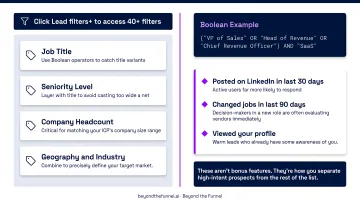
These aren't bonus features. They're how you separate high-intent prospects from the rest of the list.
Building and Organizing Your Lead Lists
Save leads from search results to named Lead Lists — click Save → select or create a list. Name lists descriptively:
- VP Sales — SaaS 50-500 headcount — USA
- Campaign Wave 1 — Finance Directors
- Tier 1 Accounts — Q3
Organized lists let you track outreach by segment and measure which ICP combinations actually convert.
Account Lists work alongside Lead Lists — save target companies and Sales Navigator surfaces leadership changes, hiring spikes, and funding activity at those accounts. These account-level signals are often the best timing triggers for outreach.
Setting Up Alerts and Saved Searches
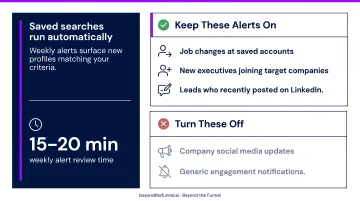
Those timing signals are only useful if you catch them consistently. That's where saved searches come in. After building a search, save it — searches run automatically and generate weekly alerts when new profiles match your criteria, converting Sales Navigator from a one-time tool into a self-refreshing pipeline.
From the homepage, configure which alerts you receive:
Keep these alerts on:
- Job changes at saved accounts
- New executives joining target companies
- Leads who recently posted on LinkedIn
Turn these off:
- Company social media updates
- Generic engagement notifications
Weekly alert review takes 15-20 minutes and surfaces the most time-sensitive opportunities in your pipeline.
Reaching Out: Connection Requests, InMail, and Personalization
Two outreach paths:
- Connection requests — free, land in the regular inbox, require acceptance before direct messaging; this should be the default
- InMail — 50 credits/month on Core, bypasses the connection step, lands in the primary inbox; reserve for high-priority prospects outside your network
Personalization signals available directly in Sales Navigator:
- Recent posts the prospect published
- Shared LinkedIn groups
- Mutual connections
- Job changes or company announcements in the last 90 days
Each of these is surfaced on the lead's profile or via alerts. Referencing a specific post or role transition in an outreach message takes 30 seconds and meaningfully changes how it reads compared to a generic opener.
How to Nurture and Engage Leads in Sales Navigator
Finding the right leads is half the work. Most B2B purchases require multiple touchpoints before a conversation starts.
Engage Before You Pitch
Use the bell icon on a lead's profile to get notified of new posts. When they publish something relevant, comment with a genuine insight or question. Consistent, value-adding engagement builds familiarity. That familiarity increases connection acceptance rates and makes your eventual message feel expected, not random.
Use Account Changes as Outreach Triggers
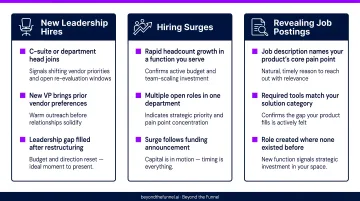
Gartner's research on the B2B buying journey consistently links organizational change to new vendor evaluations — which is exactly what Sales Navigator's account alerts are built to track. Watch for:
- New C-suite or department head hires, which signal shifting priorities and potential re-evaluation of existing vendors
- Hiring surges in a function your solution serves, indicating growth and available budget
- Job postings that describe pain points your product directly addresses — a natural, timely reason to reach out
Use Relationship Explorer to Find the Right Entry Point
Relationship Explorer shows you the most relevant leads at a target account, along with warm-path context that makes outreach feel less cold. Before messaging, check for:
- Shared connections who could facilitate an introduction
- Recent activity that gives you a relevant conversation starter
- Past colleagues who already know your name or your company
Use this to identify the right entry point at an account — not just the most senior title available.
Best Practices for Maximizing Your Sales Navigator Results
Check In Consistently
The platform's value compounds over time. Users who log in once a month miss the time-sensitive signals — job changes, profile views, recent posts — that make outreach relevant. A weekly 20-minute review of alerts and saved search results keeps your pipeline active.
Use "View Similar" to Expand High-Performing Segments
Navigate to any high-fit lead or existing customer's profile and click View Similar. This surfaces 100+ lookalike profiles — one of the fastest ways to expand a target segment without rebuilding filters from scratch.
Layer Paid LinkedIn Advertising on Top of Your Prospecting
Once you've identified a precise segment of decision-makers through Sales Navigator, that same audience profile can inform your LinkedIn Ads targeting strategy. For B2B brands looking to move leads through the funnel beyond direct outreach, coordinating paid campaigns with Sales Navigator prospecting is where pipeline acceleration happens.
Beyond the Funnel uses this exact approach with B2B clients. Evidation's former Head of Commercial Marketing credited working with founder Joshua Stout on a full LinkedIn strategy — combining direct outreach with paid campaigns around a shared ICP — for growing their pipeline from a few dozen to over 100 qualified opportunities in a single year.
Track Performance by List Segment
Monitor response rates, connection acceptance rates, and meetings booked by persona or list type. This reveals which ICP segments are most receptive and which filter combinations produce the highest-quality leads. Refine searches based on what the data shows — then adjust your filters and targeting before the next cycle.
Frequently Asked Questions
Is LinkedIn Sales Navigator good for lead generation?
Yes. It's one of the most capable B2B lead generation tools available, with 50+ filters, intent signals, and Spotlight features. That said, effectiveness depends heavily on setup — without defined Personas and active Spotlight filter usage, most of those capabilities go unused.
What is the 4-1-1 rule on LinkedIn?
The 4-1-1 rule is a content distribution guideline: for every one self-promotional post, share one piece of relevant content from others and four pieces of educational or value-focused content. Sales reps apply this to build a credible LinkedIn presence that supports their Sales Navigator outreach.
What is the difference between Sales Navigator Core and Advanced?
Core covers advanced search, InMail, lead lists, saved searches, and alerts — sufficient for individual sellers. Advanced adds TeamLink, Account IQ, Lead IQ, and buyer intent signals, making it more valuable for larger sales teams with marketing support.
How many InMail credits do you get with LinkedIn Sales Navigator?
Core includes 50 InMail credits per month. Because the allotment is limited, prioritize InMail for high-value prospects who are outside your network and unlikely to accept a connection request — not as a default first-contact method for everyone on your list.
Can I use LinkedIn Sales Navigator without upgrading my regular LinkedIn account?
Sales Navigator is a separate subscription from LinkedIn Premium and doesn't require a Premium account to access. It runs through its own interface and includes a 7-day free trial for eligible accounts.
How do I keep my Sales Navigator lead lists from going stale?
Save your searches, not just your leads. Saved searches refresh weekly and alert you to new matching profiles automatically. Combining this with regular alert monitoring keeps your pipeline active and current.