Introduction
B2B marketers running LinkedIn ads face a frustrating blind spot. Campaign Manager shows impressions, clicks, and engagement — but without proper tracking, most of those clicks arrive on your website labeled as "direct" traffic. Your CRM has no idea LinkedIn sent them. Your pipeline data is disconnected from your spend.
UTM parameters fix this. They're short text tags appended to destination URLs — after a "?" — that tell GA4, your CRM, and any other analytics tool exactly where a click came from: which platform, which campaign, which ad.
This guide covers everything you need to get LinkedIn tracking right:
- What UTM parameters are and why they matter for B2B campaigns
- How to set them up correctly in LinkedIn Campaign Manager
- LinkedIn's October 2025 campaign hierarchy changes and what they affect
- How to build a naming convention that holds up over time
- The tracking mistakes that break attribution without warning
Key Takeaways
- UTM parameters connect LinkedIn ad clicks to website visits, leads, and pipeline in GA4 and your CRM
- LinkedIn supports both static tags (
utm_source=linkedin) and dynamic macros ({{AD_SET_NAME}}) that auto-populate with real campaign data - Campaign-level (ad set level) setup is the most reliable method — it applies tracking across all ads automatically
- Consistent naming conventions — lowercase, underscores, no spaces — are non-negotiable for clean, reliable data
- UTMs only capture click-through behavior — pair them with the LinkedIn Insight Tag for view-through conversions and retargeting
What Are UTM Parameters for LinkedIn Ads?
UTM stands for Urchin Tracking Module — a legacy name tied to Google's pre-Analytics tracking product. Today, they're the standard method for telling analytics platforms where a visitor came from.
A UTM-tagged LinkedIn ad URL looks like this:
https://yoursite.com/demo?utm_source=linkedin&utm_medium=paid_social
&utm_campaign=saas_vp_q3&utm_content=singleimage_v1&utm_term=vp-finance
The Five Parameters and What They Do
| Parameter | Purpose | LinkedIn Example |
|---|---|---|
utm_source |
Identifies the traffic source | linkedin |
utm_medium |
Identifies the channel type | paid_social or cpc |
utm_campaign |
Names the initiative or campaign group | saas_vp_q3_awareness |
utm_content |
Differentiates ad creatives | singleimage_v1 |
utm_term |
Optional audience or targeting data | vp-finance |
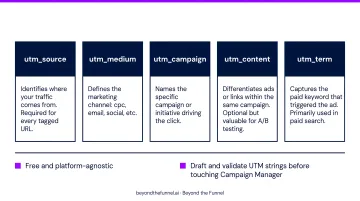
Google's Campaign URL Builder is free and platform-agnostic — useful for drafting and validating UTM strings before you touch Campaign Manager.
What UTMs Don't Do
UTM parameters are click-based — they only capture data when someone clicks through to your destination URL. A few things they won't track:
- Ad views and impressions — no click, no data recorded
- In-platform Campaign Manager metrics — UTMs live in your own analytics tools, not LinkedIn's dashboard
- LinkedIn Insight Tag activity — a separate JavaScript pixel with its own tracking mechanism, independent of UTM strings
Why UTM Tracking Is Essential for B2B LinkedIn Campaigns
Without UTM tags, LinkedIn sends clicks to your site with no source information attached. Google Analytics processes these sessions as direct traffic when no referral data is available — meaning a prospect who clicked your LinkedIn ad and filled out a demo form shows up in your CRM as an unattributed lead.
For B2B teams, this is a serious problem. And the scale of LinkedIn's role in B2B paid media makes it urgent.
The B2B Stakes
LinkedIn captures 47.2% of US B2B display ad spending, and over 90% of ads on LinkedIn are B2B-oriented, according to eMarketer. That level of investment demands accountability.
B2B buying cycles make attribution harder. Demand Gen Report found the average B2B buying cycle runs 11.3 months, with an average of 11 people involved in the decision. When a deal closes seven months after a LinkedIn ad first touched a buyer, you need a data trail — or that attribution is gone.
From CTR to Pipeline
Proper UTM tracking lets B2B teams ask better questions:
- Which campaign drove this demo request — awareness or retargeting?
- Is the Single Image or Video ad generating more qualified leads?
- Which audience segment is entering pipeline vs. bouncing?
These are the questions B2B leadership cares about. Without UTMs, you're stuck optimizing for CTR inside LinkedIn's closed system — with no visibility into what those clicks actually produced. UTM parameters bridge that gap, letting you connect LinkedIn spend directly to pipeline and closed revenue, so every budget conversation starts from real data.
How to Set Up UTM Parameters in LinkedIn Campaign Manager
LinkedIn supports tracking parameters at three levels: account, campaign (ad set), and ad. According to LinkedIn's official URL tracking documentation, static UTM parameters can be applied at all three levels, while dynamic macros are supported at the account and campaign (ad set) levels only.
For most setups, the campaign (ad set) level is the right default. A few rules to keep in mind:
- Sets the same tracking string across every ad in the campaign automatically, reducing manual error
- Parameters at multiple levels stack — they don't override each other
- Never duplicate the same parameter key at two levels, or you'll get conflicting values
LinkedIn's October 2025 Hierarchy Rename
LinkedIn updated its Campaign Manager naming structure in October 2025. The old hierarchy (Campaign Group / Campaign / Creative) is now Campaign / Ad Set / Ad. This directly affects dynamic macro names:
| Old Macro | New Macro |
|---|---|
CAMPAIGN_GROUP_ID |
CAMPAIGN_ID |
CAMPAIGN_GROUP_NAME |
CAMPAIGN_NAME |
CAMPAIGN_ID |
AD_SET_ID |
CAMPAIGN_NAME |
AD_SET_NAME |
CREATIVE_ID |
AD_ID |
CREATIVE_NAME |
AD_NAME |
LinkedIn states that existing ad sets automatically update to new parameters, but new or edited ad sets must use the updated macro names. Outdated macros silently fail — no error message, just blank parameter values in your analytics.
Full List of Supported Dynamic Macros
ACCOUNT_ID/ACCOUNT_NAME— identifies the LinkedIn accountCAMPAIGN_ID/CAMPAIGN_NAME— identifies the campaign (top-level initiative)AD_SET_ID/AD_SET_NAME— identifies the ad set (targeting layer)AD_ID/AD_NAME— identifies the individual ad creative
Use NAME macros for human-readable reporting in GA4. Use ID macros when connecting to CRM systems or BI tools that need a stable, unique identifier.
With your macros chosen, you're ready to build the full tracking string. Work through these three steps before touching Campaign Manager.
Step 1: Build Your UTM String
Combine static values with dynamic macros in a text editor first:
utm_source=linkedin&utm_medium=paid_social
&utm_campaign={{CAMPAIGN_NAME}}&utm_content={{AD_SET_NAME}}_{{AD_ID}}
Check the format before pasting it into Campaign Manager — Google's Campaign URL Builder is a quick way to confirm the string is structured correctly.
Step 2: Add at the Campaign (Ad Set) Level
In Campaign Manager, open the ad set, find the URL tracking parameters field, paste your string, and save. LinkedIn appends it automatically to every ad's destination URL in that campaign.
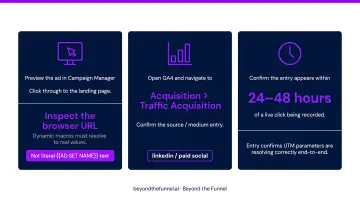
Step 3: Test Before Launching
Preview the ad in Campaign Manager, click through to the landing page, and inspect the browser URL. Dynamic macros should resolve to real values — not appear as literal {{AD_SET_NAME}} text. Then verify in GA4 under Acquisition → Traffic Acquisition that linkedin / paid_social appears within 24–48 hours of a live click.
Building a Consistent UTM Naming Convention for LinkedIn
Analytics Mania's GA4 naming convention guidance identifies snake_case as the standard — lowercase words separated by underscores. The reason is simple: GA4 and most CRMs treat LinkedIn and linkedin as two different sources. One team member's capitalization preference fragments your data permanently.
Three non-negotiable rules:
- Always lowercase
- Underscores instead of spaces (spaces encode as
%20and break readability) - No special characters
Recommended UTM Structure for B2B LinkedIn Campaigns
utm_source=linkedin
utm_medium=paid_social
utm_campaign=[objective]_[audience-tier]_[quarter]
utm_content=[ad-format]_[creative-variant]
utm_term=[audience-segment] (optional)
Example 1 — Awareness campaign targeting VP-level SaaS buyers:
utm_source=linkedin&utm_medium=paid_social
&utm_campaign=awareness_vp_saas_q3_2025
&utm_content=singleimage_v1&utm_term=vp-engineering
Example 2 — Retargeting warm leads:
utm_source=linkedin&utm_medium=paid_social
&utm_campaign=retargeting_warm_leads_q3_2025
&utm_content=video_testimonial_v2
Mapping LinkedIn's Hierarchy to UTM Parameters
utm_campaign→ campaign group or overarching initiative (what you're promoting)utm_content→ use{{AD_SET_NAME}}or{{AD_ID}}to distinguish creative variationsutm_term→ optional audience segment (targeting tier, persona, or vertical)
Governance at Scale
Once your naming convention is set, enforce it before the first campaign launches. Naming drift is easy to create and hard to fix retroactively. Put these three governance steps in place:
- Document in a shared reference so every team member pulls from the same source of truth
- Build a Google Sheet with dropdowns for each field to prevent freeform entries and typos
- Run all URLs through the Google Campaign URL Builder as part of your campaign launch checklist
Common LinkedIn UTM Tracking Mistakes to Avoid
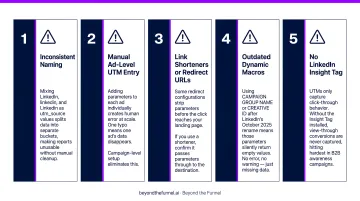
The Five Costliest Errors
Inconsistent naming — mixing
LinkedIn,linkedin, andLinkedinas utm_source values splits data into separate buckets. Reports become unusable without manual cleanup.Manual ad-level UTM entry — adding parameters to each ad individually creates human error at scale. One typo means one ad's data disappears. Campaign-level setup eliminates this.
Link shorteners or redirect URLs — some redirect configurations strip parameters before the click reaches your landing page. HubSpot's LinkedIn ads documentation explicitly warns about this. If you use a shortener, confirm it passes parameters through to the destination — Bitly and Rebrandly document this behavior, but verify for your specific setup.
Outdated dynamic macros — using
CAMPAIGN_GROUP_NAMEorCREATIVE_IDafter LinkedIn's October 2025 rename means those parameters silently return empty values. No error, no warning — just missing data in your reports.No LinkedIn Insight Tag — UTMs only capture click-through behavior. Without the Insight Tag installed, view-through conversions are never captured. This gap hits hardest in B2B awareness campaigns, where buyers often see an ad and convert days later.
UTM Parameters vs. the LinkedIn Insight Tag
These tools do different jobs and B2B advertisers need both:
Click-through attribution (UTMs): Parameters live in GA4 and your CRM, tracking who clicked, from which campaign, and what happened after — across your own reporting infrastructure.
On-platform conversion tracking (Insight Tag): A JavaScript pixel on your website. LinkedIn confirms it enables campaign reporting, conversion tracking, audience insights, and retargeting within Campaign Manager — capturing events UTMs can't see.
Use UTMs for CRM attribution and revenue reporting; use the Insight Tag for on-platform conversion data and retargeting audience builds. They work together — and that CRM connection is where the real revenue picture comes together.
Connect UTM Data to Your CRM
Technically correct UTM tracking becomes strategically useless if the data never maps to pipeline records. The goal is connecting utm_campaign values to CRM opportunity fields — so you can answer "which LinkedIn campaign sourced this $200K deal?" Building this CRM-to-UTM connection at the start of a campaign program is straightforward. Retrofitting it across a year of untagged leads is painful and often incomplete.
At Beyond the Funnel, tracking infrastructure is built into campaign setup from day one — not retrofitted after the fact. Across 1,000+ managed accounts, the teams that do this consistently are the ones who can confidently answer leadership's budget questions and know exactly which campaigns to scale.
Frequently Asked Questions
What is the tracking called for LinkedIn ads?
LinkedIn ad tracking uses UTM parameters (Urchin Tracking Module tags) — URL-based tags added to destination URLs — along with LinkedIn's native dynamic URL tracking parameters (macros like {{CAMPAIGN_NAME}}) that auto-populate with real campaign data when a user clicks an ad.
Should I set UTM parameters at the account, campaign, or ad level in LinkedIn?
Campaign level (ad set level in LinkedIn's 2025 hierarchy) is the best default. It applies tracking consistently to all ads within a campaign automatically. Note that parameters at multiple levels stack rather than override — avoid duplicating the same parameter key at different levels.
What is the difference between UTM parameters and the LinkedIn Insight Tag?
UTM parameters are click-through attribution tags that send data to your analytics tools (GA4, CRM). The LinkedIn Insight Tag is a JavaScript pixel that tracks conversions inside Campaign Manager and enables retargeting audience building. Run both together: UTM parameters tell GA4 where traffic came from, while the Insight Tag tells Campaign Manager what that traffic converted into.
Do UTM parameters work with all LinkedIn ad formats?
UTM parameters work with most LinkedIn ad formats that include a destination URL — Single Image, Video, Carousel, Sponsored Content, and Text Ads. Some formats like Document Ads and Thought Leader Ads may have limitations, so confirm support for any newer formats directly in Campaign Manager before launching.
What LinkedIn dynamic URL parameters should I use for B2B tracking?
Use CAMPAIGN_NAME for the initiative, AD_SET_NAME for the targeting layer, and AD_ID or AD_NAME for creative-level data. Macro names updated in October 2025 — the old CAMPAIGN_GROUP_NAME and CREATIVE_ID parameters have been renamed, so cross-reference against LinkedIn's current macro reference before building your tracking URLs.
How do I test if my LinkedIn UTM parameters are working correctly?
Preview the ad in Campaign Manager, click through to the destination URL, and confirm all parameters appear in the browser address bar with dynamic macros resolved to actual values. Then open GA4 under Acquisition → Traffic Acquisition and verify linkedin / paid_social appears within 24–48 hours of a live click.